Hello friends,
here is the first public beta of LumoraFHD for OpenBH 6.0, together with the Lumora Style plugin.
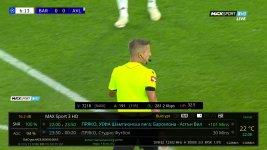
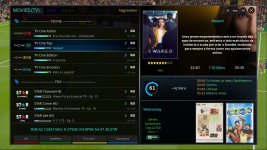
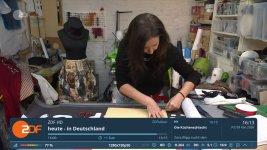
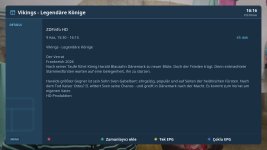
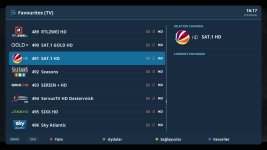
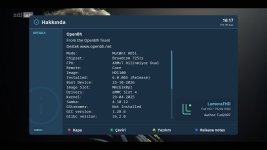
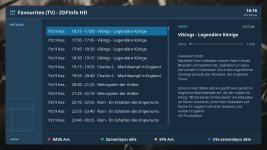
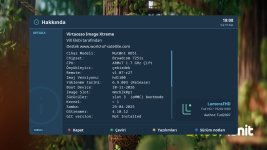
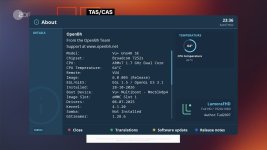
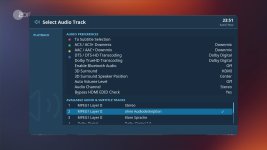
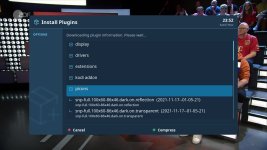
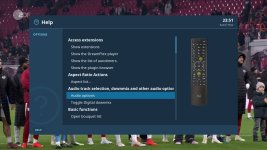
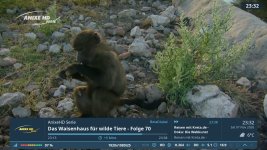
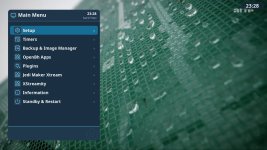
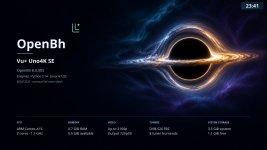
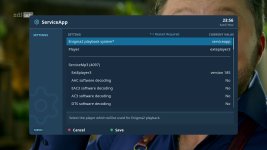
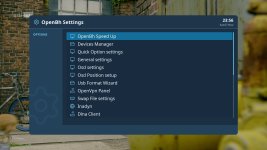
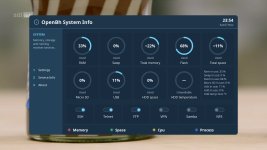
LumoraFHD is made for Full HD, 1920×1080. It includes layouts for the main OpenBH menus, infobars, channel lists, EPG, playback, settings and many information screens as attached in previous posts.
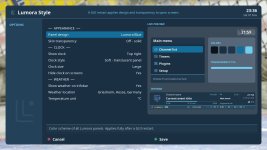
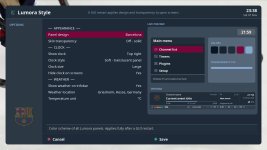
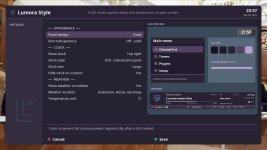
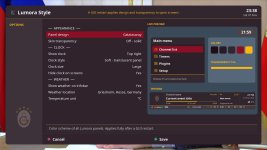
The included Lumora Style plugin lets you choose from several color styles, including dark and daylight designs. You can also add your own styles using JSON files. There are optional sample football team styles with kit colors, logos and default picons. This was always I wanted to have in a skin myself.
The plugin also has settings for skin transparency, an integrated permanent clock and simple weather information on the infobar.
The skin and plugin come in one package. The team styles are optional and in a separate archive, maybe later some car styles, too.
To install the skin, copy the attached IPK file to /tmp/ on your receiver. Install it with the local package installer in OpenBH, or use SSH:
After installation, restart the GUI. Then select Lumorafhd in the skin settings and confirm the next GUI restart.
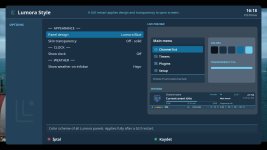
You will find Lumora Style in the plugin browser. Under Panel design, choose the style you like. The live preview shows a menu and an infobar so you can see the colors before saving.
Save your changes and restart the GUI when asked. Many elements already update when you change the style, but I still recommend a GUI restart so everything uses the new colors and transparency.
To add the team styles, extract the separate archive team_styles.zip and extract the LumoraStyle folder into: /etc/enigma2/
The folders should look like this:
The JSON files go in themes/, and the PNG images go in logos/. Restart the GUI after copying them. The new styles will then appear under Panel design.
The logos and new team picons have 20% visibility for a soft watermark effect.
You can also make your own style without editing skin.xml. Copy this file:
Give the copy a name such as my_style.json and open it with a plain text editor.
There are five main colors:
- background: for the main background.
- card: for content panels.
- side: for navigation and header areas.
- selection: for the selected list item.
- selectionShade: for its extra shade.
There are also two highlight colors, accent and accent2. You can set text and secondary yourself, or leave them out and let the plugin choose them.
Here is an example:
Use PNG files with a transparent background. The recommended size is 176×208 for logo and 220×132 for picons. Each image must be smaller than 256 KB.
Restart the GUI after adding a new style. More details are in the README.txt file inside the themes folder.
Please report any layout problems or screens I have missed, and check the performance on non 4k receivers. An OSD screenshot helps a lot. Please also include your receiver model, the selected style, and the steps needed to open that screen. If the receiver crashes, please attach the full crashlog and a debug log if available. I need enough information to try the same steps on my receiver.
If you are unsure of the screen name, KiddaC Skin E2sentials by @kiddac can show it on the screen. You can find it on [LinuxSat Support]
Update on 28:11.2026
LumoraEvent - TMDB event data manager
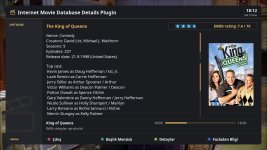
LumoraEvent is an optional plugin that adds movie and series information and artwork to supported LumoraFHD screens. It uses TMDB to look for details such as descriptions, ratings, posters and backdrops when they are available.
The plugin can fetch information in the background for the programs you are watching. After a short pause on a channel, it can also look for the next event, however it will not scan all bouquets automatically. Downloaded information and artwork are cached so they can be reused.
For supported streamed movies and series without EPG information, LumoraEvent can also search using the service name. In the Event information and Mini TV channel list layouts, it can optionally fetch artwork while you browse movies and series.
With LumoraEvent installed and enabled, you can select the supported Event layouts in Lumora Style, including Event information in the channel list and second infobar. The normal skin and Lumora Style also work without LumoraEvent.
Be aware not every title will necessarily be found or matched correctly as the plugin is still at early stage.
Setting up LumoraEvent
LumoraEvent needs an internet connection, a TMDB account and your own TMDB API Read Access Token. You can enter the token in the plugin settings or add it manually to:
Open LumoraEvent from the plugin browser and check the settings. You can choose the metadata language, enable posters and backdrops, and select a cache directory and maximum cache size. The default cache location is on the HDD; you can choose a suitable USB drive or network storage instead. The selected location needs at least 1 GiB of free space.
You can also disable LumoraEvent integration in its settings. A GUI restart updates the available Lumora Style options and screens.
---
I mainly use OpenBH, so I will share updates and give support only here in this forum.
Thanks to everyone who tries it and sends feedback.
Regards
here is the first public beta of LumoraFHD for OpenBH 6.0, together with the Lumora Style plugin.
LumoraFHD is made for Full HD, 1920×1080. It includes layouts for the main OpenBH menus, infobars, channel lists, EPG, playback, settings and many information screens as attached in previous posts.
The included Lumora Style plugin lets you choose from several color styles, including dark and daylight designs. You can also add your own styles using JSON files. There are optional sample football team styles with kit colors, logos and default picons. This was always I wanted to have in a skin myself.
The plugin also has settings for skin transparency, an integrated permanent clock and simple weather information on the infobar.
The skin and plugin come in one package. The team styles are optional and in a separate archive, maybe later some car styles, too.
To install the skin, copy the attached IPK file to /tmp/ on your receiver. Install it with the local package installer in OpenBH, or use SSH:
Bash:
opkg install /tmp/enigma2-plugin-skins-lumorafhd_VERSION_all.ipkAfter installation, restart the GUI. Then select Lumorafhd in the skin settings and confirm the next GUI restart.
You will find Lumora Style in the plugin browser. Under Panel design, choose the style you like. The live preview shows a menu and an infobar so you can see the colors before saving.
Save your changes and restart the GUI when asked. Many elements already update when you change the style, but I still recommend a GUI restart so everything uses the new colors and transparency.
To add the team styles, extract the separate archive team_styles.zip and extract the LumoraStyle folder into: /etc/enigma2/
The folders should look like this:
Code:
/etc/enigma2/LumoraStyle/

├── themes/
│   ├── galatasaray.json
│   ├── real_madrid.json
│   └── ...
└── logos/
    ├── galatasaray-logo.png
    ├── galatasaray-picon.png
    ├── real-madrid-logo.png
    ├── real-madrid-picon.png
    └── ...
The JSON files go in themes/, and the PNG images go in logos/. Restart the GUI after copying them. The new styles will then appear under Panel design.
The logos and new team picons have 20% visibility for a soft watermark effect.
You can also make your own style without editing skin.xml. Copy this file:
Code:
/etc/enigma2/LumoraStyle/themes/_example.jsonGive the copy a name such as my_style.json and open it with a plain text editor.
There are five main colors:
- background: for the main background.
- card: for content panels.
- side: for navigation and header areas.
- selection: for the selected list item.
- selectionShade: for its extra shade.
There are also two highlight colors, accent and accent2. You can set text and secondary yourself, or leave them out and let the plugin choose them.
Here is an example:
JSON:
{
  "name": "My custom style",
  "background": "#101820",
  "card": "#18242f",
  "side": "#20313f",
  "selection": "#2b6f9e",
  "selectionShade": "#1e4d70",
  "accent": "#f2c14e",
  "accent2": "#7fc8f8",
  "text": "#ffffff",
  "secondary": "#b8c4cf",
  "logo": "my-style-logo.png",
  "picon": "my-style-picon.png"
}
Use PNG files with a transparent background. The recommended size is 176×208 for logo and 220×132 for picons. Each image must be smaller than 256 KB.
Restart the GUI after adding a new style. More details are in the README.txt file inside the themes folder.
Please report any layout problems or screens I have missed, and check the performance on non 4k receivers. An OSD screenshot helps a lot. Please also include your receiver model, the selected style, and the steps needed to open that screen. If the receiver crashes, please attach the full crashlog and a debug log if available. I need enough information to try the same steps on my receiver.
If you are unsure of the screen name, KiddaC Skin E2sentials by @kiddac can show it on the screen. You can find it on [LinuxSat Support]
Update on 28:11.2026
LumoraEvent - TMDB event data manager
LumoraEvent is an optional plugin that adds movie and series information and artwork to supported LumoraFHD screens. It uses TMDB to look for details such as descriptions, ratings, posters and backdrops when they are available.
The plugin can fetch information in the background for the programs you are watching. After a short pause on a channel, it can also look for the next event, however it will not scan all bouquets automatically. Downloaded information and artwork are cached so they can be reused.
For supported streamed movies and series without EPG information, LumoraEvent can also search using the service name. In the Event information and Mini TV channel list layouts, it can optionally fetch artwork while you browse movies and series.
With LumoraEvent installed and enabled, you can select the supported Event layouts in Lumora Style, including Event information in the channel list and second infobar. The normal skin and Lumora Style also work without LumoraEvent.
Be aware not every title will necessarily be found or matched correctly as the plugin is still at early stage.
Setting up LumoraEvent
LumoraEvent needs an internet connection, a TMDB account and your own TMDB API Read Access Token. You can enter the token in the plugin settings or add it manually to:
Code:
/etc/enigma2/LumoraEvent/tmdb_api_keyOpen LumoraEvent from the plugin browser and check the settings. You can choose the metadata language, enable posters and backdrops, and select a cache directory and maximum cache size. The default cache location is on the HDD; you can choose a suitable USB drive or network storage instead. The selected location needs at least 1 GiB of free space.
You can also disable LumoraEvent integration in its settings. A GUI restart updates the available Lumora Style options and screens.
---
I mainly use OpenBH, so I will share updates and give support only here in this forum.
Thanks to everyone who tries it and sends feedback.
Regards
Attachments
-
 about.jpg157.6 KB · Views: 30
-
 audiotrack.jpg147.2 KB · Views: 30
-
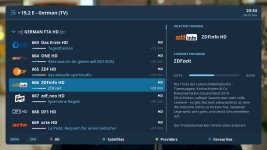 channellist.jpg200.2 KB · Views: 30
-
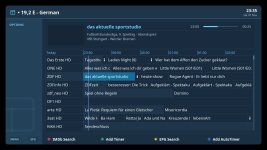 gridepg.jpg198.9 KB · Views: 30
-
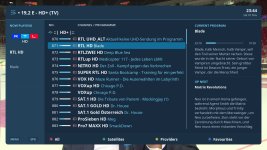 channellist_slim.jpg247.6 KB · Views: 29
-
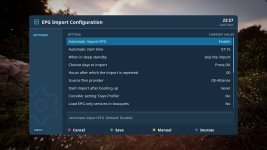 epgimport.jpg182.4 KB · Views: 28
-
 plugins.jpg195 KB · Views: 35
-
 help.jpg200.1 KB · Views: 33
-
 infobar.jpg338.7 KB · Views: 35
-
 setup.jpg196.5 KB · Views: 35
-
 screensaver.jpg170.6 KB · Views: 35
-
 serviceapp.jpg158.4 KB · Views: 34
-
 style.jpg172.3 KB · Views: 27
-
 style_barcelona.jpg154.9 KB · Views: 26
-
 settings.jpg182.7 KB · Views: 27
-
 systeminfo.jpg149.7 KB · Views: 25
-
 style_dusk.jpg165.3 KB · Views: 32
-
 style_galatasaray.jpg174 KB · Views: 27
-
team_styles.zip474.8 KB · Views: 22
-
enigma2-plugin-skins-lumorafhd_1.0.0_all.ipk1.6 MB · Views: 7
-
enigma2-plugin-extensions-lumoraevent_1.0.0_all.ipk204.3 KB · Views: 4
Last edited: